Have you ever created a map with hundreds or thousands of pins, only to find that many of them overlap, making your map difficult to read? When multiple locations are displayed close together, map markers can become crowded, hiding important information and making it harder to explore your data.
With Pinmaps.net's Avoid Pin Collisions feature, you can create cleaner, more organized maps by automatically managing overlapping pins.
Before: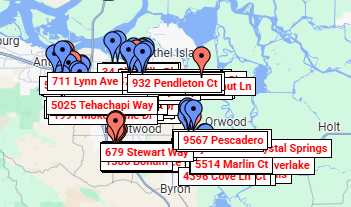
After: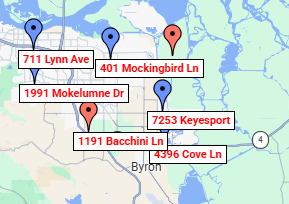
What Is Pin Collision Management?
Pin collision management helps prevent map markers from visually overlapping each other. When enabled, Pinmaps.net automatically determines which pins should remain visible based on their positions and available space on the map.
Instead of displaying every pin on top of another, the system temporarily hides some overlapping markers, creating a cleaner and easier-to-read map.
Your pins are never deleted or removed from your map. They are simply hidden from view when necessary to reduce visual clutter.
As you zoom in, zoom out, or move around the map, the visible markers may change, allowing you to explore different areas more easily.
Why Is This Useful for Maps with Many Locations?
If you're working with a large number of map pins, collision management can make a noticeable difference in how your map looks and feels.
For example, businesses mapping customer locations, sales territories, or service areas can benefit from a less cluttered view. Real estate professionals can display property locations more clearly, while educators and researchers can create maps containing large collections of geographic data.
The benefits include:
-
Cleaner maps: Reduce overlapping pins and visual clutter.
-
Better visibility: Make individual markers easier to identify.
-
Improved navigation: Explore crowded areas without excessive marker overlap.
-
Flexible display: Enable or disable the feature depending on your mapping needs.
Keep in mind that pins sharing the exact same geographic coordinates may continue to overlap even when you zoom in. Collision management controls their visibility, but it does not move pins to different locations.
Try Avoid Pin Collisions on Your Next Map
The feature is especially recommended for maps containing large numbers of pins, but it can also be useful whenever locations are positioned close together.
Experiment with the Avoid Pin Collisions setting to see what works best for your map. You can change the setting later, so there's no need to worry about making a permanent choice.
Whether you're mapping business locations, planning routes, managing customer territories, or visualizing geographic information, Pinmaps.net gives you more control over how your locations appear.
Create Your Interactive Map with Pinmaps.net and discover how easy it is to organize and display